Managing servers spread across on-premises, multi-cloud, and edge locations can become difficult to control as environments grow. Azure Arc addresses this by extending Azure’s management, governance, and security features to servers that are not hosted in Azure.
This article walks through how to onboard a Windows Server into Azure Arc, covering everything from enabling the necessary Azure resource providers to installing the Azure Arc agent. Whether you’re onboarding a single test server or deploying at scale, you’ll learn the available approaches and how to begin.
Prerequisites
Before you start, make sure you have:
• A Windows Server (2012 or newer) with outbound internet access or a configured proxy
• An active Microsoft Azure subscription
Register required Azure resource providers
Azure resource providers define the REST APIs that enable functionality for Azure services.
To work with Azure Arc–enabled servers, the following resource providers must be registered in your subscription:
• Microsoft.HybridCompute
• Microsoft.GuestConfiguration
• Microsoft.HybridConnectivity
• Microsoft.AzureArcData
You can register these providers using Azure PowerShell, the Azure CLI, or directly through the Azure portal. In this walkthrough, we’ll use the Azure CLI.
In the Azure Portal Cloud Shell, run the following commands:
az provider register --namespace 'Microsoft.HybridCompute'
az provider register --namespace 'Microsoft.GuestConfiguration'
az provider register --namespace 'Microsoft.HybridConnectivity'
az provider register --namespace 'Microsoft.AzureArcData'
Ways to onboard a Windows Server
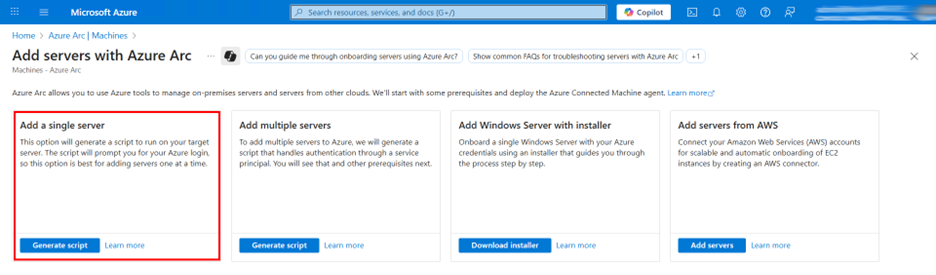
There are several methods available to install the Azure Arc agent on an existing Windows Server:
• Add a single server
• Add multiple servers
• Install using the Windows Server Arc installer
• Connect servers from AWS
• Use the built-in Azure Arc setup in Windows Server 2022 and later
Both the single server and multiple server options rely on running a script on the target machines.
The single server approach runs an interactive script that prompts you to sign in with your Azure credentials. This works well for small environments or one-off servers, but it’s not well suited for large-scale deployments.
The multiple server method uses a service principal for authentication. This script can be executed manually or deployed using tools such as Configuration Manager, Group Policy, or Ansible, making it ideal for rolling out the Arc agent across many servers.
The Windows Server Arc installer option downloads an executable file that you run locally on the server. It provides a graphical interface that guides you through installing and registering the Arc agent.
Using the multi-cloud connector in the Azure portal, you can also onboard AWS resources into Azure Arc.
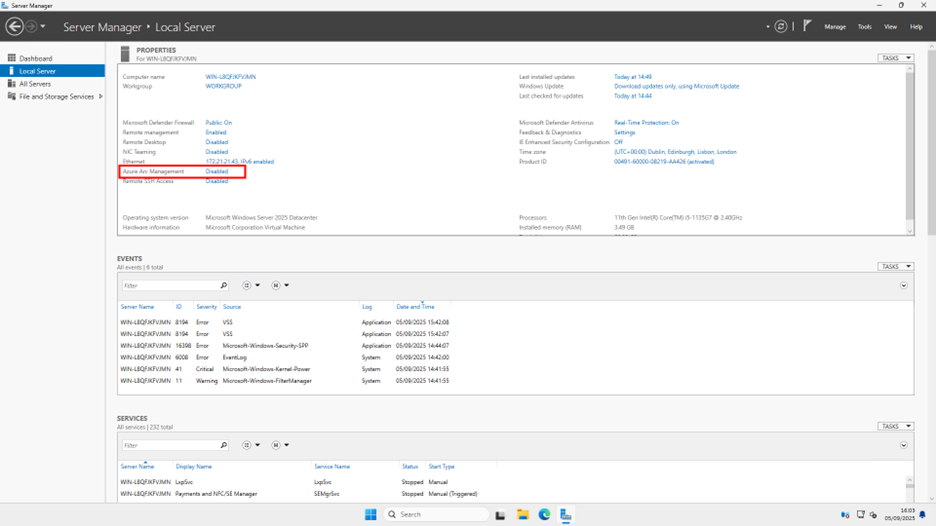
Finally, starting with Windows Server 2022, Azure Arc integration is built directly into the operating system. From Server Manager, you can launch a wizard that walks you through connecting the server to Azure via the Arc agent.